

Buy RDP: How to Choose a Windows VPS for Remote Work
Choose a remote desktop around your actual workload. Compare RDP product types, Windows VPS resources, licensing, access security, and recovery before buying.

To buy RDP for reliable remote access, choose a Windows VPS with the resources, administrator permissions, location, and licensing your work requires. Check the renewal price, recovery options, and access controls before ordering. A low monthly price is useful only when the desktop can run your applications comfortably and you can regain access if something goes wrong.
The difficult part is that sellers use “RDP” to describe different products. One offer may provide a user account on a shared Windows machine. Another may provide your own virtual server with administrator access. Both can display a remote desktop, but the control, performance, and responsibilities differ considerably.
This guide explains what to compare, how to size a first server, and what to check after deployment. If you already know your requirements, explore REGXA's RDP server options
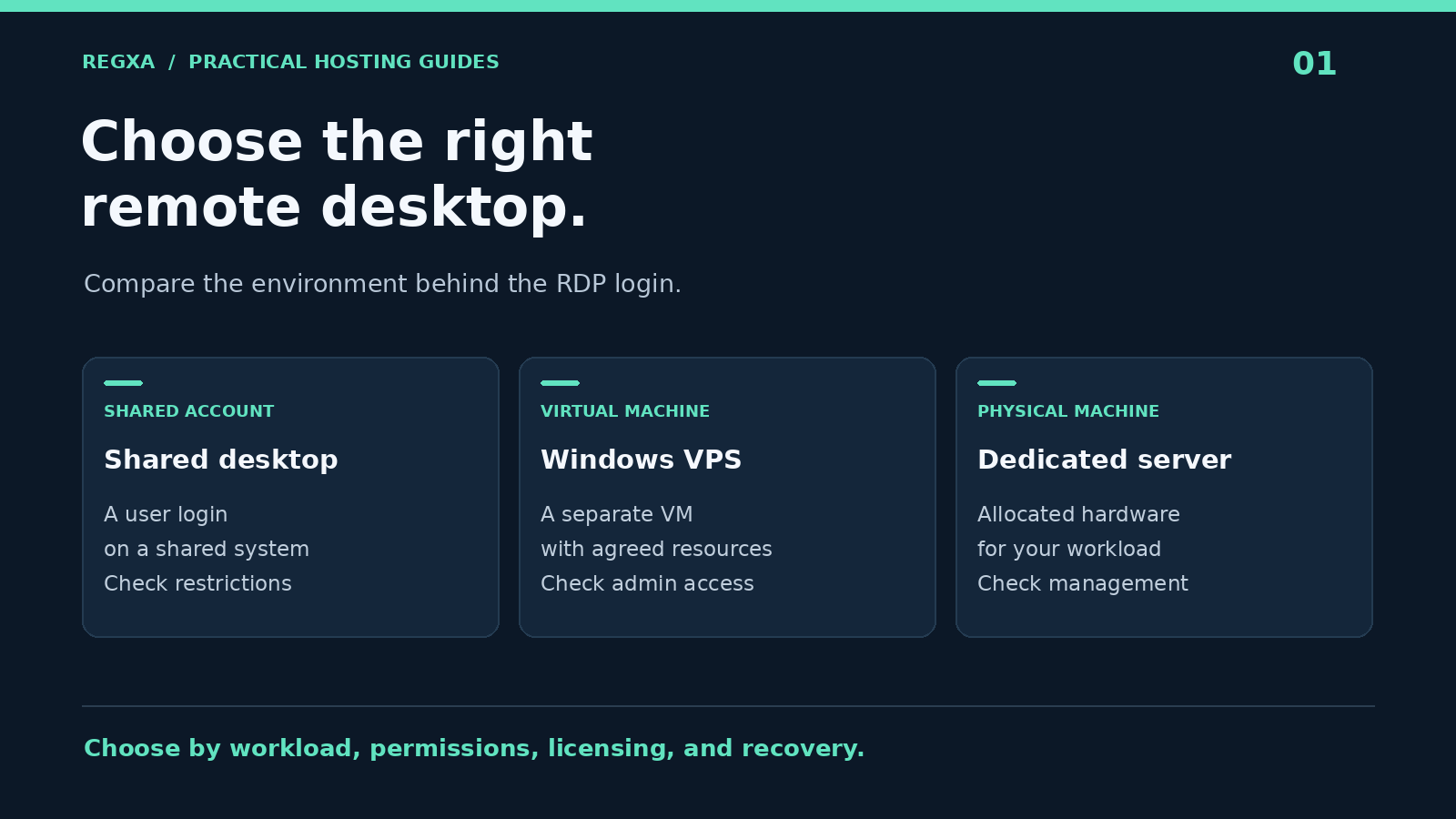
What are you buying when you buy RDP?
RDP stands for Remote Desktop Protocol. It lets you interact with a remote Windows environment through a desktop client. Your applications run on the remote machine while your local device sends keyboard and mouse input and displays the session. Microsoft's Remote Desktop documentation explains the connection requirements.
In hosting, “buy RDP” usually means renting access to a Windows environment. It does not automatically mean renting an entire physical server or receiving permission to install every application.
Product | What you usually receive | What to verify |
|---|---|---|
Shared remote desktop account | A login to a Windows environment used by multiple customers | Resource sharing, application restrictions, and separation between users |
Windows VPS with RDP | A separate virtual machine that you access through Remote Desktop | Administrator rights, resource allocation, Windows image, and recovery console |
Managed remote desktop service | A desktop environment with an agreed management service | Support scope, user licensing, update ownership, and backups |
Dedicated Windows server | A physical server allocated to you | Total cost, hardware recovery, and whether management is included |
A VPS is often a practical option when you need to install approved software, control your configuration, and keep your work environment separate. “Dedicated VPS” still needs clarification: a dedicated virtual machine does not necessarily have dedicated physical CPU cores.
Start with the work you need to do
Write down your applications before comparing plans. Include their supported Windows editions, expected memory use, disk requirements, and whether they need a GPU or other special hardware.
For example, a developer testing a Windows application has different needs from a small business maintaining an accounting environment. A browser with many active tabs can consume more memory than a lightweight background utility. A graphics application may require capabilities that an ordinary VPS does not provide.
Use a short requirement statement: “One person needs a persistent Windows environment for these three applications, with this much project data, in a region that is responsive from our office.” That description gives a provider something useful to match against its plans.
How much RAM and CPU should you choose?
The following ranges are planning examples for evaluation, not Microsoft minimum requirements or performance guarantees. Check the operating system and application vendors' requirements, then test your actual workload.
Example workload | Initial evaluation range | What to measure during a trial |
|---|---|---|
One user, light desktop work | 2 vCPU and 4 GB RAM | Memory use with all normal applications open |
Several business applications or moderate development | 4 vCPU and 8 GB RAM | CPU pressure, application launch time, and disk activity |
Larger projects or sustained multitasking | 4–8 vCPU and 16 GB RAM or more | Peak memory, build time, and storage growth |
Graphics or compute intensive software | A workload-specific configuration | GPU availability, hardware compatibility, and vendor licensing |
Leave room for Windows updates, antivirus activity, temporary files, and growth. If the desktop becomes slow only when memory is nearly full, buying more CPU may not solve the problem. If one application saturates a single core, additional virtual cores may offer less benefit than a faster CPU allocation.
For storage, count the operating system, installed software, working data, logs, and free space required for updates. NVMe storage can be useful, but the label alone does not describe the storage performance available to your particular VM.
Choose location for the person using the desktop
Remote work is interactive. Latency, packet loss, and inconsistent connectivity affect the experience even when the server has sufficient CPU and RAM.
Shortlist nearby regions, then ask for a test address or a permitted trial. Evaluate the connection from the network you actually use, including any company VPN. Open your usual applications, scroll through a document, and move between windows. A location that performs well for a colleague on another ISP may behave differently for you.
A 1 Gbps server port describes a network interface or service limit. It does not guarantee a 1 Gbps connection to your laptop, eliminate latency, or specify how much monthly transfer is included. Compare port speed, traffic allowance, and routing separately.
Check administrator access, licensing, and support
Administrator access
Ask whether your account can install software, manage Windows services, create permitted users, and change firewall settings. A product described as “full admin RDP” should make those permissions clear before checkout.
Administrator access also creates responsibilities. On an unmanaged VPS, you may need to maintain your applications, schedule updates, and arrange backups. Find out which problems the hosting provider handles and which remain yours.
Windows and application licensing
Confirm which Windows edition and license arrangement are included. A functioning desktop does not establish that every intended use is licensed. Ask separately about Microsoft Office, commercial business applications, and any multiuser desktop arrangement.
Windows Server Remote Desktop Services has its own access licensing requirements. Microsoft's RDS licensing guide describes per-user and per-device CALs; hosted licensing arrangements also need confirmation with the provider. Do not treat administrative access as a general license for a team to use hosted desktops.
Support and recovery
Check support hours, the contact channel for an inaccessible server, and the availability of a console that works when RDP does not. Ask how password resets and operating system reinstalls affect your data. Reinstalling a server can erase the working environment; it should not be the first troubleshooting step.
Compare the full cost of an RDP plan
A useful quote includes the recurring server price, Windows licensing, optional management, backup storage, additional IP addresses, and any transfer charges. Check the renewal amount as carefully as the initial promotion.
Consider the cost of interruption too. A cheaper plan may be a poor fit if it requires frequent resizing, lacks a recovery path, or offers support only when your business is closed.
Before paying, answer these questions:
- Is this a shared desktop account or a separate Windows VPS?
- Are the advertised resources shared, reserved, or subject to specific limits?
- Does the selected Windows image support my applications?
- What licenses and user access rights are included?
- What is the complete renewal price?
- What happens to my files during a reset, reinstall, or cancellation?
- Where will I keep a recoverable backup?
REGXA lists administrator access, Windows remote desktop, NVMe storage, and crypto checkout on its buy RDP page. Use the selected configuration and checkout to confirm availability and the complete price, and compare the broader Windows VPS range when you need a different resource level.
Your first connection: a practical checklist
Once the service is ready, obtain the server address, username, and connection details through your account's official service information. Use a supported Remote Desktop client and verify you are connecting to the server you ordered.
Before saving business data, complete these checks:
- Verify the installation. Check the Windows edition, available RAM, disk capacity, and expected applications.
- Secure the account. Replace temporary credentials with a unique password and enable account MFA where available.
- Restrict remote access. Prefer an appropriately configured VPN or gateway; otherwise limit permitted source addresses wherever practical.
- Keep Network Level Authentication enabled. NLA requires authentication before establishing the remote session, as described in Microsoft's access guidance.
- Install updates and plan reboots. Test a restart before the server becomes essential to your work.
- Create a separate backup. Restore a small file to confirm the backup is useful.
When changing access controls, keep a recovery console available and test a second connection before closing the first. Changing an RDP port can reduce background noise, but it does not replace authentication and access restrictions.
What if the desktop is slow or will not connect?
Separate a connection problem from a server performance problem before upgrading or reinstalling.
Symptom | Check first | Useful information for support |
|---|---|---|
Connection times out | Service status, allowed source IP, firewall, and destination details | Time of failure, source network, and whether the console works |
Login is rejected | Username format, password, and permitted account | Exact error text without sharing the password |
Desktop responds slowly | Local connectivity, server memory, CPU, and disk activity | Which application triggers the slowdown and when |
Session drops repeatedly | Packet loss, VPN stability, and session policies | Frequency, affected networks, and any event log entry |
Application stops after sign-out | Application design and session behavior | Whether you disconnected or signed out |
Disconnecting from a session and signing out are different actions. Applications may continue after disconnection, subject to session policies; signing out normally ends that user's applications. For essential background work, confirm the application's supported service or scheduling method and test recovery after a reboot.
Frequently asked questions
Is RDP the same as a Windows VPS?
RDP is an access protocol. A Windows VPS is a virtual server that can provide a remote desktop through that protocol. Check the product description because an RDP offer can also be a shared user account.
Can I connect from a Mac or another device?
You need a supported client for your device and a network path to the server. Check client compatibility before ordering, especially if you need printing, clipboard sharing, or multiple displays.
Can several people use one RDP server?
Potentially, but the operating system, server capacity, access configuration, and licensing must support that use. Tell the provider how many people will connect and what they will run.
Can I pay for RDP with cryptocurrency?
REGXA advertises crypto checkout for its RDP offering. Use only the currencies and networks available on the actual invoice, and confirm the payment before expecting provisioning.
Does an RDP server keep working when my laptop is off?
The remote server can remain running independently of your laptop. Whether an application continues depends on its design, session policies, reboots, and service status. Test the behavior you depend on.
Choose a desktop you can operate confidently
The right RDP plan gives you a usable Windows environment, clear control over your applications, and a reliable way to recover access. Start with your workload, test the connection, and make licensing and backups part of the buying decision.
Compare REGXA RDP plans and choose the Windows configuration that matches your work.
Related Topics
Buy RDP: How to Choose a Windows VPS for Remote Work